
I remember the exact moment I wanted to throw my brand-new, expensive wireless headphones across the room. I had just poured a fresh cup of coffee, sat down at my desk, and queued up my favorite acoustic playlist to get some work done. Instead of the warm, rich soundstage I expected, what came out of those earcups sounded like a phone call from 1998. It was tinny, completely hollow, and utterly devoid of bass. If you have ever experienced the real reason your bluetooth headphones keep stuttering or suddenly sounding like a cheap walkie-talkie on your PC, you know exactly how frustrating this is. You buy premium gear, only for Windows to treat it like a hands-free headset from a bygone era. Today, we are going to fix this annoying issue once and for all so you can finally get the high-fidelity sound you actually paid for.
The Accidental Hands-Free Profile Mistake That Ruins Your Music
The absolute biggest blunder I made early on was assuming my computer would automatically know the difference between a high-quality music stream and a Zoom call. Windows tries to be helpful by managing your audio profiles, but it often ends up tripping over its own feet. When you connect a Bluetooth headset with a built-in microphone, Windows frequently forces the device into “Hands-Free AG Audio” mode. This profile severely limits the available bandwidth because it reserves a massive chunk of the wireless signal for your microphone input. According to Bluetooth SIG specifications, standard hands-free profiles compress audio down to an 8kHz or 16kHz sampling rate to handle bidirectional communication, which completely destroys music quality. The moment this switch happens, your high-end headphones instantly sound worse than a pair of free airplane earbuds.
Is Windows secretly sabotaging your premium audio gear?
It certainly feels like it. The system is designed to prioritize communication over audio quality, which is fine if you are taking a quick voice call, but absolutely terrible if you are trying to enjoy a movie or a FLAC audio file. Many people falsely assume their headphones are defective, or that their PC’s Bluetooth chip is simply too weak. I spent hours debugging my own system, even wondering if my headphone jack was failing before realizing the issue was entirely software-based (and if you ever have hardware issues, you can learn how to fix a loose headphone jack on your favorite pair instead). Have you ever noticed your music quality suddenly plummeting the exact moment you open Discord, Skype, or a PC game? Drop a comment below and let me know if this audio drop-off drives you as crazy as it drives me. Let’s dive into how we can disable this frustrating feature and force Windows to deliver pure, uncompressed stereo sound.
Think of your Bluetooth bandwidth like a narrow two-lane highway. When you use your headphones solely for listening, Windows opens up both lanes for incoming traffic, allowing high-quality audio data to flow freely. But the moment your microphone is activated, Windows has to instantly shut down one lane to let your voice travel back to the PC. The system crams both the incoming stereo audio and your outgoing voice signal into a single, highly compressed lane. To fix this, we must force Windows to treat your premium gear like high-fidelity speakers rather than a hands-free office headset.
How to Disable the Hands-Free Telephony Service
The most reliable way to solve this issue is to cut off the Hands-Free profile at the system level. This prevents Windows from ever switching your headphones into that low-quality, tinny communication mode. I remember trying to set up my desk setup with a pair of high-end wireless cans, and every time my computer went to sleep, the audio reverted to sounding like a broken intercom. I ended up digging deep into the classic Control Panel, and disabling this specific service cured the issue instantly. If your speaker setup ever cuts out in a similar fashion, you can read about how to fix a speaker that is cutting in and out to troubleshoot hardware issues, but for wireless headphones, this software fix is your golden ticket.
Step 1: Open Your Legacy Control Panel
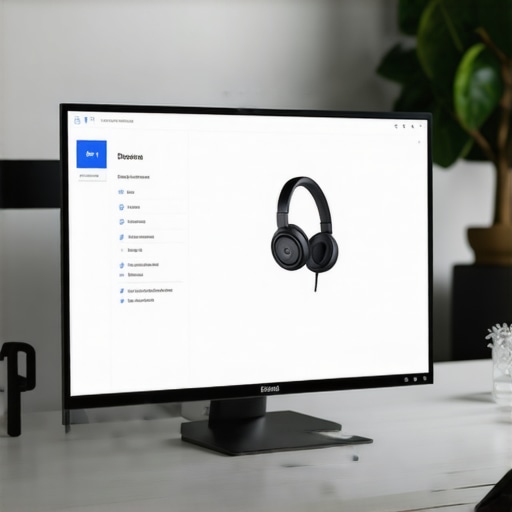
Windows has hidden the classic Control Panel behind its modern Settings app, but the old menu still holds the keys to deep hardware configurations. Press the Windows Key + R, type control into the Run dialog box, and hit Enter. Once the classic Control Panel opens, set your view to “Large Icons” in the top-right corner, then locate and click on Devices and Printers.
Step 2: Access Your Headphone Properties
Find your connected Bluetooth headphones in the list of devices. Right-click on your device icon and select Properties. In the properties window that pops up, navigate to the Services tab. This tab displays every function your headphones can perform, from audio sink capabilities to remote control features.
Step 3: Uncheck Hands-Free Telephony
Look down the list of services until you find Hands-Free Telephony. This is the exact feature that forces your headphones into that low-bandwidth state. Uncheck the box next to it, click Apply, and then click OK. Your headphones will briefly disconnect and reconnect. When they reconnect, Windows will only recognize them as a high-quality stereo playback device, completely ignoring the low-quality microphone component.
Make Sure the Right Default Device is Selected
Sometimes Windows keeps looking for the disabled profile, leaving you with no sound at all. To clean this up, right-click the speaker icon in your system tray on the taskbar and select Sound settings. Scroll down and click on More sound settings to open the classic Sound Control Panel. Under the Playback tab, make sure your headphones are selected as the “Stereo” or “Headphones” option, and set them as your Default Device. Never choose the option labeled “Hands-Free AG Audio” here, as that is the compressed profile we want to avoid.
Disable the Hands-Free Input Device Entirely
To ensure no random software like Discord or Zoom tries to wake up the dead hands-free profile, switch over to the Recording tab inside the same Sound Control Panel. Find your headphones’ microphone (usually listed as “Hands-Free AG Audio”), right-click it, and choose Disable. This forces your system to use your webcam mic, a dedicated USB mic, or your laptop’s built-in microphone array instead. By keeping your audio playback on the high-fidelity channel and your input on a separate physical device, you maintain pristine wireless sound quality without compromises.
The Great Digital Audio Converter Illusion
Many audiophiles believe that buying a multi-thousand-dollar digital-to-analog converter (DAC) is the ultimate shortcut to pristine sound. However, I want to challenge this common belief. Everyone says you need a massive, dedicated DAC unit to get great audio, but in my experience, the actual physical acoustic properties of your listening environment and the software processing pipelines matter far more than the chip itself. In fact, if you look at modern research from groups like the Audio Engineering Society (AES), blind listening tests frequently prove that average listeners cannot reliably tell the difference between a mid-range DAC and an ultra-high-end unit when the output volume is perfectly matched.
To truly understand how audio fidelity scales with your budget, it is critical to look at the difference between a cheap and expensive DAC before you empty your wallet. The real bottle-neck in your desktop setup is rarely the silicon chip converting your bits; it is the physical interference, low-quality software profiles, and untreated room acoustics. Spending five hundred dollars on a sleek metal box will not fix a muddy audio signal if Windows is still downsampling your playback stream behind your back.
Why does your high-end gear sound surprisingly flat on certain devices?
This brings us to a major “trap” that many audio enthusiasts fall into when switching between different media sources. Have you ever plugged your studio cans into a gaming console controller only to feel completely underwhelmed? You are not alone. There is a huge power delivery mismatch that happens when you try to drive high-impedance headphones with low-power battery devices. If you want to understand why this happens, check out why your high-end headphones sound tiny when plugged into a controller. It is a classic power-delivery issue: without enough voltage, your drivers cannot move fast enough to produce rich bass or dynamic highs, leaving you with a hollow and lifeless soundstage.
Before you rush to buy new hardware or return your expensive headphones, make sure you have thoroughly audited your system’s software configurations. Disabling those hidden hands-free profiles, matching your device impedance, and utilizing proper default playback rates will do more for your listening experience than any magic cable or expensive accessory ever could. Have you ever fallen into this trap and blamed your headphones instead of the software? Let me know in the comments below!
My Personal Toolkit for Keeping Audio Running Flawlessly
Once you clear the software hurdles and finally get your wireless headphones sounding like a premium product, you realize that maintaining that high-quality connection requires a bit of active upkeep. I do not believe in magic solutions or expensive cable elevators, but I do swear by a few specific utilities and habits that prevent Windows from slipping back into its old habits. First, I always keep a lightweight software tool called Bluetooth Command Line Tools installed. It allows me to write quick batch scripts to reset my PC’s Bluetooth stack without rebooting, which is a lifesaver when Windows occasionally tries to force-enable disabled services after a major system update.
Another tool in my physical maintenance kit is a simple, high-quality contact cleaner like DeoxIT D5. I use this to clean the physical jacks on my desktop amplifiers and receiver connections. Dust and microscopic oxidation are the silent killers of analog signals. In fact, keeping physical ports clean is just as important as managing your digital bandwidth. If you ever transition from wireless to a physical desk setup and experience physical port wear, you should look into how to fix a loose headphone jack on your favorite pair before declaring them dead.
How do I maintain my home audio gear over time?
To keep your audio system performing at its peak, you have to treat physical maintenance and digital settings as an ongoing routine. On the digital side, I check my Windows Sound Control Panel after every major Windows update because Microsoft has a habit of silently resetting default audio formats back to CD quality (16-bit, 44.1kHz) or re-enabling the low-bandwidth Hands-Free Telephony service. On the hardware side, physical wear on cables and connectors is inevitable. For example, if you often plug and unplug your daily drivers, you will want to know how to stop your headphone cable from twisting into loops to prevent the internal copper wiring from fraying under mechanical stress. Additionally, store your headphones on a dedicated stand that does not compress the ear pads or put unnecessary tension on the headband springs.
Where is this technology heading? According to the official technical specifications released by the Bluetooth Special Interest Group (SIG) regarding the Bluetooth LE Audio standard, we are on the cusp of a major shift. The introduction of the LC3 codec is designed to replace the aging SBC standard, promising much higher audio quality at half the data rate, alongside native support for simultaneous multi-stream audio. This means future versions of Windows should theoretically be able to handle bidirectional microphone data and high-fidelity stereo streams at the same time, without forcing your headphones into a low-quality fallback state. Until LE Audio is universally adopted across all PC motherboards and headsets, however, the manual fixes we covered today remain your absolute best line of defense.
My challenge to you today is to take five minutes to audit your Windows sound settings. Don’t just settle for standard audio; go into your classic Control Panel, disable the Hands-Free Telephony service for your main listening device, and hear the immediate difference in clarity and stereo width for yourself.
3 Myths About Wireless Headphone Profiles That Held Me Back
For the longest time, I fell victim to common misconceptions about wireless audio transmission on PCs. First, I believed that my premium Bluetooth headphones were simply incompatible with Windows, or that my motherboard had a cheap, flawed wireless card. In reality, the hardware was perfectly fine; the operating system was just choosing the wrong virtual pathway. Another major myth is that setting your headphone’s volume to maximum on the computer fixes the dull sound. This actually introduces digital clipping, compounding the issue rather than restoring dynamic range. Finally, I assumed that if I purchased a high-end external microphone, Windows would automatically stop using the headphone’s low-quality mic profile. Windows is notoriously stubborn and requires manual intervention to break this loop. If your signal struggles elsewhere, you might also want to look into the real reason your bluetooth headphones keep stuttering to ensure complete wireless stability.
My Essential Toolkit for Pristine Desktop Audio
Keeping your desktop audio configuration pristine does not require a massive budget, but it does require the right utilities. Here are the three tools I use to keep my wireless and wired setups sounding spectacular:
- Bluetooth Command Line Tools: This free suite lets you modify Bluetooth settings via the Windows Command Prompt or batch files, which makes resetting corrupt connection profiles incredibly easy.
- Equalizer APO: A powerful parametric equalizer for Windows that operates system-wide, allowing you to tune your headphones’ frequency response without adding latency.
- DeoxIT D5 Contact Cleaner: Essential for maintaining clean physical connections on desktop amps. If you switch to wired gear and encounter physical port issues, keeping your connections clean is vital. For hardware troubles, you can read about how to fix a loose headphone jack on your favorite pair to keep your gear working smoothly.
Take Control of Your Desktop Listening Experience Today
You do not have to accept subpar, compressed sound from your premium audio gear just because Windows defaults to low-bandwidth communication profiles. By manually stripping away the Hands-Free Telephony service, you force your operating system to deliver the full, uncompromised stereo signal your hardware is capable of producing. Take five minutes to audit your legacy Control Panel settings tonight and unleash the true depth of your music and movies. Have you struggled to get your wireless headphones to play nice with Windows audio settings? Let me know in the comments below!