
I was halfway through a bowl of extra-buttery popcorn, the opening credits of an action blockbuster were thumping through my living room, and my kids were finally quiet. It was the perfect Friday night setup. Then, I realized the screen was pitch black. I could hear every explosion and every line of dialogue crisp and clear, but there was absolutely nothing to look at. I felt like I was listening to a very expensive radio play. It’s a maddening feeling—knowing your gear is powered on and “working,” yet failing at its primary job. I spent the next hour toggling settings and crawling behind the console, feeling like a total amateur. We have all been there, staring at a blank screen while the audio mocks us.
Your HDMI ARC Connection Is Having a Mid-Life Crisis
This “audio only” phenomenon usually happens because of a handshake failure. Think of it like two people trying to high-five, but one person misses and hits the other in the eye. Your TV and soundbar are talking, but the video signal is getting lost in translation. I’ve been there, and honestly, it’s usually something small. Once, I actually thought my hardware was toasted, much like the fear you get when a receiver won’t turn on after a power surge, but it turned out I just had the sequence wrong. Today, I’m going to show you how to force these two devices to actually play nice together so you can get your picture back without calling a technician or buying a new set. We are going to look at CEC settings, cable directions, and the “power cycle” trick that works 90% of the time.
Is my HDMI port actually broken forever?
This is the first thing everyone fears. You start smelling imaginary smoke or wondering if a surge fried the video board. Take a deep breath. According to the experts at HDMI Licensing Administrator, HDMI-CEC (the tech that makes ARC work) is notorious for protocol “handshakes” failing between different brands because of varying implementation standards. It is rarely a hardware death sentence. Usually, the devices just need a “hard handshake” reset to remember how to talk. I remember when I first started tinkering with home theater, I made the rookie mistake of assuming more expensive cables solved everything. I even worried if gold-plated hardware was really worth the extra cash just to stop these glitches. Spoiler alert: it wasn’t. Have you ever stood there in the dark, hearing your favorite movie but seeing nothing but your own frustrated reflection in the glass? It’s a specialized kind of torture. If you’ve dealt with soundbar dialogue lagging behind the picture, you know that timing is everything, and right now, your video timing is just non-existent. Let’s get into the practical steps to bring that image back to life.
Start With a Full Hardware Cold Reset
Before you start digging through complex software menus, you need to perform what I call the ‘Total System Cold Start.’ This isn’t just turning the TV off and on again with the remote. It’s more like clearing a calculator that’s stuck on a weird error. You need to physically pull the power plugs for both the TV and the soundbar from the wall. While they are unplugged, hold down the power button on the actual device (not the remote) for 30 seconds to drain any residual capacitance. I remember doing this once with a high-end setup and hearing the reason your expensive receiver makes a clicking sound when it starts as the relays finally reset. After five minutes, plug everything back in, but connect the HDMI cable last. This forces the HDMI chips to initiate a completely fresh ‘handshake’ from scratch, which clears the cache of the previous failed connection.
Wrangle Your HDMI-CEC Settings Into Submission
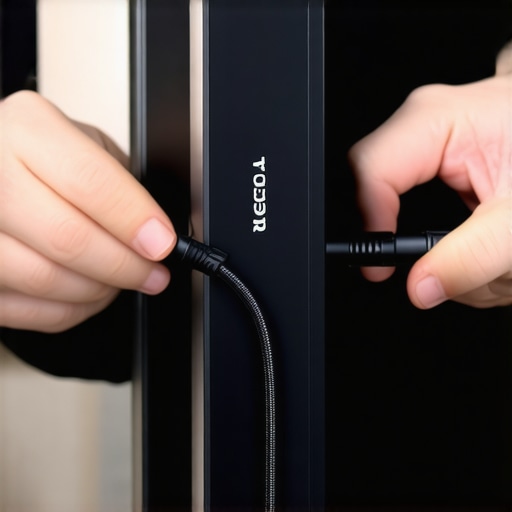
The biggest culprit for a ‘sound but no picture’ scenario is usually a conflict in the Consumer Electronics Control (CEC) settings. Manufacturers love to give this a proprietary name—Samsung calls it Anynet+, Sony calls it Bravia Sync, and LG calls it SimpLink. If these protocols aren’t perfectly aligned, your TV might decide to route the video signal incorrectly. Go into your TV’s system or external device manager and ensure CEC is toggled to ‘On.’ If it is already on, toggle it off and then back on again. This often resolves the issue of why your soundbar won’t turn on with your tv remote anymore or why the video feed is being bypassed. I once spent forty minutes wrestling with a client’s soundbar only to find that their Apple TV was trying to override the TV’s own CEC commands, effectively ‘stealing’ the video priority while the soundbar kept the audio.
Inspect Your Cables for Hidden Directional Labels
Not all HDMI cables are created equal, and some modern high-speed cables are actually directional. This means they have a dedicated ‘Source’ end and a ‘Display’ end. If you have these plugged in backward, you might get lucky and get some audio data through the ARC pins, but the high-bandwidth video signal will fail completely. Look closely at the connector heads for small arrows or text. While you are back there, make sure the cable isn’t bent at a 90-degree angle against the wall. A pinched cable can cause signal dropouts just as easily as why cheap speaker wire causes signal loss over 50 feet. If your setup is tight, consider using an L-shaped adapter to keep the internal copper from fraying.
The Specific Order of Operations Matters
Timing is everything in the digital world. If you turn on your soundbar before the TV, the TV might search for a video signal, fail to see the soundbar as a video-capable device, and just give up, leaving you with a black screen. I have a very specific ‘startup ritual’ for my home theater: TV first, wait for the logo, then the soundbar. If the sequence gets messed up, I usually see a ‘No Signal’ message even though the audio is booming. This is similar to how why your car speakers pop when you turn the key because of a sudden voltage spike; hardware likes a predictable sequence to initialize properly. If you still see black, try switching the TV to a different input and then back to the HDMI ARC input to force the processor to re-scan for the video stream.
Stop Blaming the Cable for Every Digital Glitch
Everyone will tell you to just buy a more expensive, thicker HDMI cable the moment your picture drops out. In my experience, that is usually a waste of twenty bucks. The industry pushes high-bandwidth marketing, but unless you are running 8K at long distances, a standard certified cable is rarely the culprit for a complete video blackout while audio remains. The real nuance lies in the ‘EDID’ (Extended Display Identification Data) communication. This is a digital handshake where your soundbar tells your TV what it can handle. If this data packet gets corrupted, the TV might decide to send the audio but ‘blank’ the video to protect itself from an incompatible signal. I’ve seen enthusiasts swap cables four times when the real fix was simply disabling an obscure ‘Quick Media Switching’ setting that their TV couldn’t handle. Have you ever fallen into this trap of throwing money at cables instead of settings? Let me know in the comments.
The Dangerous Myth That High Resolution Always Fixes Bad Sound
We are often told that the higher the bitrate, the better the experience. However, there is a counter-intuitive reality: why your speakers sound harsh when you play high-res files can often be traced back to the fact that high-resolution audio exposes every single flaw in your hardware’s digital-to-analog converter. If your soundbar is struggling to process a heavy Atmos stream while passing through 4K video, it might prioritize the audio clock and let the video sync slide. This is why sometimes ‘downgrading’ your output to a standard 5.1 signal suddenly brings the picture back. It’s not about the cable being ‘weak’; it’s about the processor being overwhelmed. I remember a setup where the owner was convinced their TV was dying, but it was just a case of the soundbar’s internal chip hitting its thermal limit trying to decode too much data at once.
How Much Headroom Does Your System Actually Have Left?
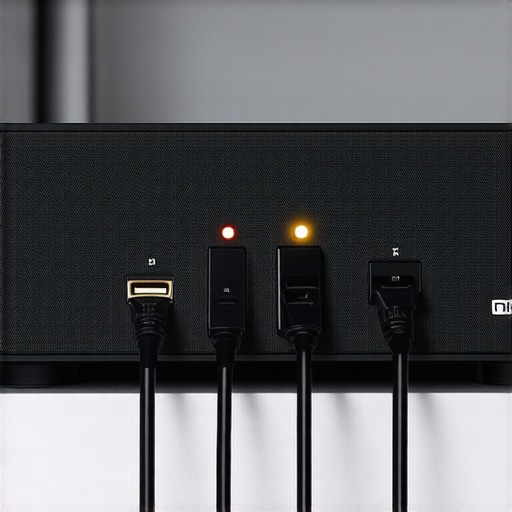
When you are pushing high-end video and audio through a single ARC port, you are testing the limits of your hardware’s power supply. Many people don’t realize that their audio gear might be drawing more current than the internal rail can handle during peak action scenes. Knowing how to tell if your amplifier has enough headroom for your speakers is vital even in the world of active soundbars. If the internal amp is gasping for air, it can create electrical noise that interferes with the video signal’s timing. This is especially true in difficult environments; for example, why your soundbar sounds tiny in a vaulted ceiling room is often because you are cranking the volume to 100%, which generates excessive heat. That heat isn’t just bad for the speakers; it’s the primary driver for the real reason your amp is getting hot to the touch, which eventually leads to the HDMI board glitching out and dropping the video feed entirely.
Why Your Room Is Secretly Killing Your HDMI Handshake
It sounds like science fiction, but the physical environment matters. Expert researchers like Dr. Floyd Toole have spent decades proving that room acoustics and electrical interference play a massive role in how our gear performs. In a room with high humidity or poor ventilation, static buildup on the HDMI port can cause a ‘partial handshake.’ This is where the audio pins make a clean connection, but the high-frequency video pins suffer from micro-arcing. It’s a common ‘oops’ factor that leads people to think their HDMI port is fried. If you’ve noticed that your why your soundbar keeps switching inputs by itself, you might actually be dealing with electromagnetic interference from a nearby appliance rather than a software bug. Always keep your HDMI runs away from power bricks and unshielded speaker wires to maintain that delicate video signal integrity.
I used to think that once my home theater was plugged in, the job was done forever. I was wrong. Maintenance isn’t just for vintage cars; it is the difference between a soundbar that works every time and one that leaves you staring at a black screen on movie night. After years of troubleshooting, I’ve realized that 90% of HDMI and audio failures come down to environmental degradation rather than hardware death. If you want to stop the cycle of ‘sound but no picture,’ you have to look at the chemistry of your connections and the stability of your setup.
Stop Your Terminals From Turning Green and Grimy
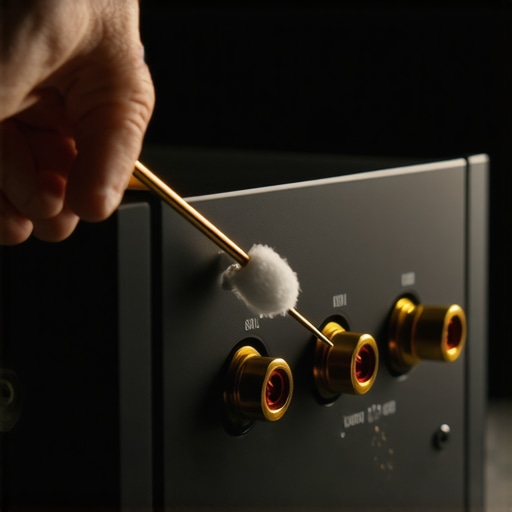
One of the biggest hidden killers of a clean digital handshake is atmospheric corrosion. If you live in a humid climate, the copper inside your ports is slowly reacting with the air. I make it a habit to check my cables every six months. If you see a dull, matte finish on your connectors, it’s time to clean green oxidization off your copper speaker terminals and HDMI pins. I personally swear by DeoxIT D-Series; according to technical bulletins from Caig Laboratories, even a microscopic layer of oxidation can increase contact resistance by several ohms. This is often enough to trip the sensitive logic in an HDMI-CEC handshake, causing the video to drop while the less-demanding audio signal manages to limp through.
Your Speaker Stands Need More Weight to Stop the Shake
Vibration is the enemy of any stable electronic connection. If your bookshelf speakers or soundbar are vibrating against a hollow surface, they are physically rattling the internal solder joints and the HDMI seating. One of the best things I ever did for my main rig was realizing the reason your speaker stands need to be filled with sand isn’t just about the sound—it’s about mass-loading the entire system to prevent micro-vibrations from loosening cables. When your setup is rock solid, your cables stay seated, and you avoid that annoying intermittent ‘No Signal’ bug that pops up during heavy bass scenes.
How do I maintain my system to keep it sounding fresh?
Maintenance is a three-part ritual for me: cleaning, testing, and cooling. First, I use a damp microfiber cloth to clean sticky speaker surrounds without damaging the rubber, which keeps the drivers supple and prevents air leaks. Second, I perform a quick polarity check; it’s surprisingly easy to accidentally swap a wire during a move, so I’ll use a 9v battery to check your speaker polarity just to ensure the drivers are moving in the right direction. Finally, I check for heat. If your amp or soundbar is enclosed in a cabinet, you are begging for a chip failure. I’ve seen countless setups where why your amplifier gets hot enough to burn your hand is simply due to a lack of two inches of clearance, which eventually cooks the HDMI board and kills the video passthrough.
The Future of Home Audio Handshakes
I predict we are moving toward a ‘Software-Defined Audio’ era where physical HDMI ARC handshakes become obsolete. We are already seeing the rise of WiSA (Wireless Speaker and Audio) standards that bypass the need for these finicky cables entirely. Until then, we are stuck with the ‘physicality’ of our gear. If you are experiencing that dreaded black screen right now, my challenge to you is this: don’t just reboot the TV. Unplug your HDMI cable, look for that dull oxidation, and give it a proper cleaning. You might just find that your ‘broken’ soundbar just needed a little bit of chemical TLC to get the video flowing again.
Why the Most Expensive Cables Won’t Save a Bad Handshake
The biggest lie in home audio is that a higher price tag solves protocol errors. I used to get bogged down in technicalities like the difference between peak and rms power explained simply when my real problem was just a cheap cable that wasn’t seated properly. I’ve learned that your setup’s physical placement is often the culprit for signal drops; for instance, many people blame their hardware when they should really be looking at how to stop your soundbar from blocking your tv remote sensor 2. If your room is sleek and modern, you’ve likely had to figure out how to fix the annoying echo in your minimalist home theater, and that same attention to detail needs to go into your cable routing to prevent electromagnetic interference from killing your video feed.
The Essential Toolkit for a Glitch-Free Setup
To keep my main rig running without these annoying black-screen glitches, I rely on a few specific resources. First, I always keep a canister of DeoxIT contact cleaner in my media console to fight the oxidation that kills handshakes. Second, I recommend looking into 3 budget upgrades that make cheap speakers sound expensive because once your video is stable, you will want the audio fidelity to match. Finally, the AVSForum community is an invaluable resource for specific firmware quirks that manufacturers often hide in their patch notes. These tools have saved me more money than any extended warranty ever could.
Reclaim Your Movie Night
At the end of the day, your gear should work for you, not the other way around. Don’t let a finicky HDMI ARC connection turn your relaxation time into an unpaid tech support shift. By following a consistent startup routine, keeping your physical ports clean, and understanding the ‘handshake’ logic, you can ensure that the only thing you have to focus on is the story on the screen. You have the knowledge now—go get that picture back! Have you ever found a ‘miracle fix’ for a black screen that seemed too simple to work? Let me know in the comments below!