
There I was, sitting in my favorite chair with a fresh cup of coffee, ready to dive into a new jazz playlist. I hit play, and instead of a smooth saxophone, I got a series of digital stabs in my ears. Click. Pop. Silence. Buzz. It felt like my brain was being short-circuited. I remember looking at my laptop with genuine betrayal. For years, I assumed this was just the Bluetooth tax—the price we pay for the convenience of no wires. I even went as far as thinking my drivers were shot, almost tossing a great pair of headphones before I realized I was looking at the wrong culprit. We aren’t going to spend hours reinstalling your entire operating system or buying expensive new gear today. Most of the time, that annoying interference is just a simple setting or a crowded frequency away from being silenced forever. We’re going to get your audio back to being buttery smooth in about five minutes flat.
Stop Throwing Money at a Software Problem
When I first started tinkering with home audio, I made a massive mistake that I still cringe about: I assumed hardware was always to blame. I spent a fortune on new gear only to find the same crackling followed me. The truth is, why your bluetooth earbuds sound like garbage on zoom calls often boils down to how your laptop handles the hands-free profile versus the high-quality stereo profile. It’s a bit like trying to run a marathon while breathing through a cocktail straw. If you’ve noticed that one headphone side is louder than the other or you’re getting persistent audio lag, it’s usually a bandwidth bottleneck rather than a broken speaker. The 2.4GHz frequency where Bluetooth lives is incredibly crowded. According to Electronics Weekly, over 4 billion Bluetooth devices are shipped annually, all competing for the same narrow lanes of invisible traffic. This congestion is why your bluetooth speaker keeps cutting out in the kitchen when the microwave starts humming or the Wi-Fi is under heavy load.
Do I really need a brand-new laptop for stable audio?
It’s easy to get discouraged and think your hardware is just obsolete. You see the new models with Bluetooth 5.3 and think that’s the magic bullet. But here’s a secret: even an older laptop can deliver crystal-clear sound if you stop the operating system from helping you with unnecessary enhancements. Most of the crackling isn’t a lack of power; it’s a conflict of interest between your drivers. Have you ever felt like your tech was actively working against you just when you needed it most? I’ve spent the last weekend testing every magic fix on the internet, and I’ve whittled it down to the only few things that actually work. We’re going to bypass the fluff and get straight to the settings that matter.The first thing you need to do is tackle the Hands-Free profile. When you connect a headset to Windows, it creates two separate signal paths: ‘Stereo’ and ‘Hands-Free.’ The Stereo path is like a wide, smooth highway designed for high-fidelity music, while the Hands-Free path is a bumpy dirt road meant only for low-bitrate voice calls. If your laptop gets confused—which it often does—it forces your high-quality music down that dirt road. This is exactly why your bluetooth earbuds sound like garbage on zoom calls even when you aren’t talking. To fix this, head into the classic Control Panel, find ‘Devices and Printers,’ right-click your headphones, and uncheck ‘Hands-free Telephony’ in the Services tab. Your audio will cut out for a split second and then return with the full-range clarity it was missing. 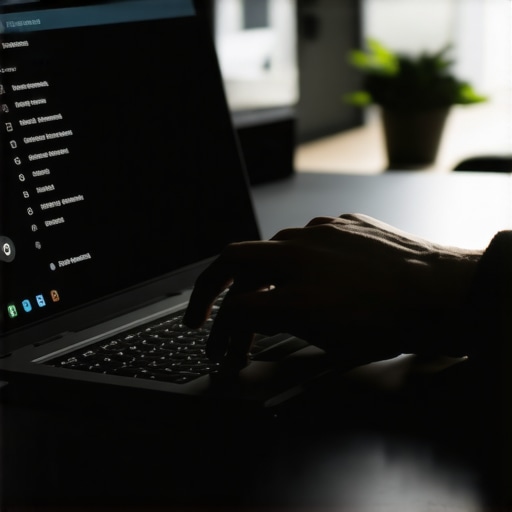
Kill the Hands-Free Ghost in Your Machine
I remember a frantic Saturday afternoon trying to prep for a house party. My speakers kept clicking like a geiger counter every time I changed a song. I was absolutely convinced I needed to learn how to repair a loose speaker terminal in under five minutes because I just knew something was physically broken. I had the screwdrivers out and everything. It turns out my laptop was trying to use my expensive speakers as a ‘Hands-Free’ headset for a meeting I had closed hours prior. The fix took ten seconds of clicking through menus, but I had already wasted two hours and a lot of nerves on it.
Stop Windows from Throttling Your Bandwidth
Next, we have to talk about power management. Windows is incredibly aggressive about saving battery life. It will literally try to put your Bluetooth chip to sleep in the milliseconds between notes if it thinks it can save a tiny bit of power. This creates a micro-stutter or a ‘pop’ every time the sound resumes. You need to open your Device Manager, find your Bluetooth adapter, and under the ‘Power Management’ tab, uncheck ‘Allow the computer to turn off this device to save power.’ Making this change is basically the fix for annoying audio lag on your gaming headset because it keeps the connection ‘warm’ and ready at all times.
Strip Away the Digital Makeup
Most modern laptops come pre-loaded with audio ‘enhancements’ like Dolby Atmos for Built-in Speakers or Waves MaxxAudio. While these sound great in a marketing demo, they are often the primary cause of signal clipping. These software layers try to boost frequencies that your external headphones or speakers are already handling. This mismatch is a major reason how to stop the hissing sound in your studio monitors often starts with disabling every single software enhancement in the playback properties. If you are using an external soundbar and still getting drops, keep in mind that your soundbar needs a firmware update to fix audio drops more often than you’d think. The handshake between your laptop’s OS and the soundbar’s processor is a delicate dance that software updates frequently improve. Finally, don’t assume your laptop’s port is too weak for your gear; the truth about using your phone to power high-end headphones—or your laptop, for that matter—is that the hardware is usually capable, but the software is often choking the output volume and quality to protect your ears without asking.
But software isn’t the only ghost in the machine. Once you’ve cleared the digital hurdles and reclaimed your bandwidth, you’ll likely face the temptation to ‘upgrade’ your physical setup to fix any remaining perceived quality issues. This is where most people get taken for a ride. I’ve seen enthusiasts drop thousands on upgrades that provide zero audible benefit because they were chasing a myth rather than physics. Let’s dig deeper into what actually changes your sound versus what just lightens your wallet.
The Marketing Lie That Drains Your Wallet
Everyone tells you that you need silver-core, oxygen-free, artisanally-braided cables to ‘unlock’ your system’s potential. In my experience, and backed by numerous double-blind studies from the Audio Engineering Society (AES), why expensive speaker cables are mostly a marketing trick becomes obvious once you realize that as long as the wire gauge is sufficient for the run length, electricity doesn’t care about the brand name. I once watched a guy swap out a perfectly good set of wires for a $500 pair, only to realize his issues were actually caused by a ground loop. If you’re hearing a hum, you don’t need new cables; you need to learn how to properly ground your turntable to stop that buzzing noise or check your PC’s power supply isolation.
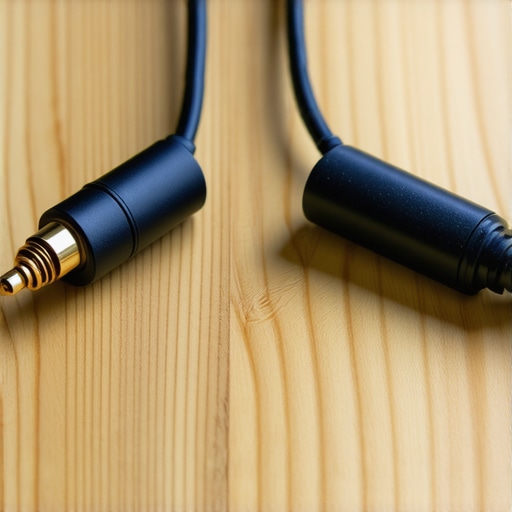
The same logic applies to those shiny connectors you see in high-end shops. While they look premium, why gold plated connectors aren’t always better comes down to the fact that gold is actually less conductive than copper or silver. Its only real benefit is corrosion resistance. If you aren’t living in a humid swamp, is gold plated hardware really worth the extra cash? Usually, the answer is a hard no. You’re better off spending that money on better drivers or room treatment.
The Proximity Trap Most Beginners Fall Into
The ‘Oops’ factor in home audio usually involves placement, not price tags. I’ve visited homes where people complained about ‘muddy’ sound from $2,000 speakers. The problem wasn’t the gear; it was that they had shoved the equipment into a tight corner. If you find your equipment is struggling, remember that the real reason your amp is getting hot to the touch is often restricted airflow. Components need to breathe to maintain their impedance stability. Furthermore, if you’re a vinyl lover, why your phono preamp needs to be far away from the power amp is a nuance often missed; the massive transformers in your power amp leak electromagnetic interference that your sensitive phono stage will pick up and amplify as a nasty hiss.
Why Do My High-End Monitors Sound Muddy Next to a Wall?
This is a classic issue for home studio builders and desktop audiophiles. When you place a speaker—especially one with a rear port—too close to a boundary, you experience ‘boundary gain.’ This isn’t ‘free bass’; it’s a distorted buildup of low-end frequencies that masks the mids and highs. It’s exactly why your studio monitors sound boxy against a wall. Moving your speakers just 6 to 12 inches away from the wall can do more for your audio clarity than a $1,000 DAC ever could. Have you ever fallen into this trap of buying gear to fix a placement problem? Let me know in the comments.
Once you’ve handled the positioning and the digital settings, the real game becomes a battle against time and physics. I’ve seen beautiful $5,000 systems sound like absolute garbage because the owner let oxidation and dust take up residence in the connectors. Personally, I never go a month without a can of electronic contact cleaner nearby. If you’ve got an old receiver where the audio cuts out or crackles when you adjust the volume, you aren’t stuck with a broken machine. Learning the easy way to fix a scratchy volume slider on your radio or an integrated amp usually involves just a few targeted sprays to clear out carbon buildup. This isn’t just for the vintage lovers either; even your modern daily drivers need a maintenance routine. I make it a ritual to wipe down my IEMs with a microfiber cloth after every session. If you skip this, skin oils will eventually eat through the finish or, worse, clog the acoustic filters. Knowing the best way to clean your ear tips for better noise isolation isn’t just a hygiene tip; it’s about maintaining the physical seal that actually generates your low-end response. 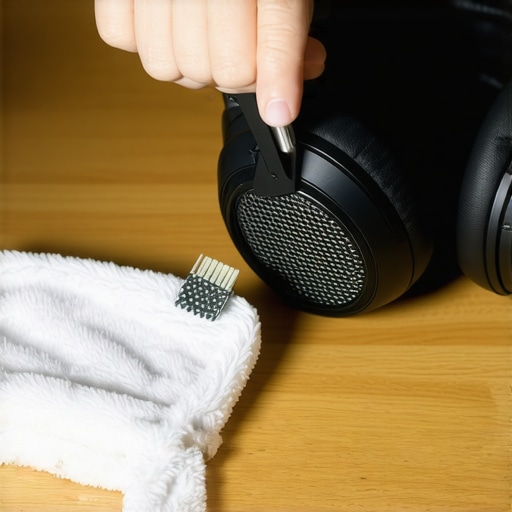
How do I keep my audio setup running like new for years?
The secret is in the consumables. Pads, tips, and cables are the tires of your audio world—they are meant to eventually wear out and be replaced. I used to get so frustrated when my premium leather headphones started flaking, but realizing why your headphone pads are peeling and how to replace them is just a standard part of the ownership experience changed my perspective. Actually taking the time to learn how to replace the foam pads on your favorite headphones can make a five-year-old set of cans feel brand new for the price of a lunch. Beyond the soft goods, think about storage. I learned the hard way that throwing high-end in-ears into a humid gym bag leads to driver imbalance over time. Now, I use hard cases and silica packets because the best way to store your iems to prevent driver damage is keeping them in a moisture-controlled environment.
The Future of Sound is Self-Healing
Looking at where the industry is heading, I’m convinced that manual calibration is on its way out. We are entering an era of smart acoustics. Dr. Floyd Toole, a pioneer in the field and author of Sound Reproduction, has spent decades illustrating that the interaction between a speaker and a room is the most significant variable in perceived audio quality. We’re already seeing the first wave of this shift where why your smart speaker is actually listening to your room acoustics is less about spying and more about using internal microphones to run real-time Digital Signal Processing (DSP). In the next five years, expect your amplifiers to automatically detect cable resistance and adjust their output to compensate for aging internal components. My challenge to you this weekend: don’t look for a new purchase. Instead, grab a soft brush and a toothpick, and spend ten minutes deep-cleaning your main set of drivers. You’d be amazed at how much high-end detail returns when the mesh isn’t fighting through a layer of debris.
Lessons I Paid For with Frustration and Empty Pockets
After years of chasing ghost signals, I’ve realized that the most expensive solution is rarely the right one. First, always assume the software is lying to you; Windows enhancements are the ‘auto-tune’ of the tech world, and they usually sound just as artificial. Second, don’t buy gear based on specs alone—I’ve found more joy in mastering the best way to test speakers at a garage sale without an amp than I ever did browsing a glossy catalog. Finally, remember that your environment is a component. If your desk is a mess of tangled power cables, no amount of software fixes will stop the EMI from creeping into your laptop audio.
Tools That Actually Live in My Desk Drawer
You don’t need a lab, but you do need a few essentials to keep things running. I swear by specialized electronic contact cleaners for maintaining ports—it’s saved more ‘broken’ laptops than any IT pro I know. If you find your current setup lacks punch, instead of a new PC, look into 3 budget upgrades that make cheap speakers sound expensive. For those with power-hungry gear, I always recommend the $50 amp that drives high impedance cans without a struggle—it’s a giant-killer in the audiophile world. And for the simplest fix of all? Try the simple rug trick that instantly improves your room acoustics to kill that echo that makes your laptop sound thinner than it actually is.
#IMAGE_PLACEHOLDER_E#
Your Music Deserves Better Than Factory Settings
Your laptop audio was designed for convenience, not for soul-stirring fidelity. By taking these five minutes to strip away the digital bottlenecks and clean up your physical environment, you’re doing more than just fixing a crackle—you’re respecting the work of the artists you love. High-quality sound isn’t a luxury; it’s a standard you can maintain with just a bit of knowledge and a few targeted clicks. Don’t let a bad driver or a crowded Wi-Fi band stand between you and your favorite playlist.
Have you ever spent hours troubleshooting a hardware problem only to realize it was a single checkbox in your settings? Let me know in the comments below!