
I was halfway through the climax of an intense thriller, popcorn in hand, when it happened. The detective on screen screamed, but the sound didn’t hit my ears until he’d already started running away. It was like watching a badly dubbed 70s kung fu flick on a premium MacBook. My heart sank. There is nothing—and I mean nothing—that pulls you out of a cinematic moment faster than a half-second delay between a character’s lips moving and the dialogue reaching your ears. If you’ve ever felt that specific brand of digital frustration, you aren’t alone. I’ve spent more nights than I care to admit yelling at my screen, toggling Bluetooth on and off like a madman, hoping that the universe would finally align my audio and video. It feels like a betrayal; you buy the nice gear, you set the mood, and the technology just decides to take a coffee break while the movie keeps rolling.
Stop Blaming Your Hardware and Start Fixing the Connection
The first thing I did when I encountered this mess was panic. I assumed my expensive noise-canceling headphones were a dud. I even went as far as thinking my laptop speakers sounding tinny was a sign that the entire sound card was fried. I was wrong. I spent hours reinstalling BIOS updates and messing with graphic settings, which had absolutely zero impact on the sync. It was a rookie mistake, thinking the physical hardware was the culprit when the protocol was the real enemy. The truth is, your laptop is likely working perfectly—it’s just communicating in a language that prioritizes connection stability over real-time speed. Today, we are going to change that. I’m going to show you the exact settings I discovered that finally locked my audio in place. Have you ever felt like throwing your laptop across the room because a character’s voice trailed behind their face? Drop a comment below; I need to know I’m not the only one who has lost their cool over this.
Is Bluetooth just fundamentally bad for watching movies?
It’s a fair question to ask. When you realize that the wireless headphones lag you experience in high-octane games is also haunting your quiet Netflix dramas, it’s easy to get cynical. You might think we are just stuck in a world where wires are the only answer. But here is a surprising fact: the technology is actually capable of near-perfect sync, but your laptop often defaults to the most basic, lag-heavy codec available to save power or processing resources. According to latency tests by RTINGS, standard Bluetooth SBC codecs can hit delays of 200ms, while AptX Low Latency can drop that to under 40ms—effectively invisible to the human eye. The fix isn’t usually buying new gear, but forcing your computer to stop being so lazy with its wireless handshake. It’s a bit like when you have to fix the audio delay on your soundbar; the hardware is fine, but the software settings are fighting you. We’re going to stop that fight today and get your movies back on track.
Ditch the Basic Codecs That Slow You Down
Your laptop is a chronic multitasker, and sometimes it gets lazy with how it packages audio data to save energy. By default, many systems fall back on the SBC (Subband Coding) codec, which is essentially the audio equivalent of sending a high-definition movie through a dial-up connection. It’s reliable and works with everything, but it’s notoriously slow. If you’re on a Mac, you can actually force the system to prioritize higher-quality streams like AAC or AptX, which significantly slashes the wireless headphones lag during gaming or movie watching. I remember a particularly frustrating night trying to watch an action flick where the audio was so far behind it felt like watching a poorly dubbed foreign film. I eventually had to dive into the ‘Bluetooth Explorer’ tool to force the AAC codec bitrates. The moment I checked that box, the audio snapped into place like a puzzle piece. It wasn’t the headphones’ fault; it was the laptop trying to save a tiny bit of CPU power by using a low-rent connection protocol. If you find your headphones sound quiet on your laptop but loud on your phone, it is often a sign that your computer is struggling to drive the signal properly through these basic protocols.
Give Your Sound a Dedicated Fast Lane
If software tweaks don’t cut it, your internal sound card might be the bottleneck. Most laptops cram their audio components right next to noisy processors and Wi-Fi chips, which can cause jitter and processing delays that manifest as sync issues. The most effective ‘pro’ move is to bypass the internal hardware entirely. You can how to use a DAC to improve your desktop computers audio by plugging in a small USB digital-to-analog converter. Think of a DAC as a specialized translator who only speaks ‘Audio.’ Instead of your main CPU trying to juggle 50 tasks while also processing sound, the DAC handles the heavy lifting, delivering a lag-free stream directly to your ears. This is a game-changer for those who want studio-quality sound without the headache of ‘drift’ over time. This approach mirrors how high-end setups fix the lip-sync delay on your soundbar using HDMI settings—by ensuring the signal path is as clean and direct as possible, you remove the ‘middle-men’ that cause delay.
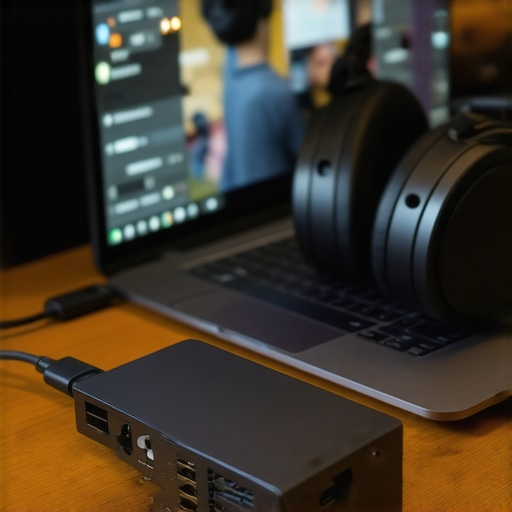
Beyond hardware, you must also look at environmental interference. I once spent an hour troubleshooting a delay only to realize my Bluetooth mouse and keyboard were ‘cluttering’ the 2.4GHz frequency. Every time I moved my mouse, the audio stuttered just enough to lose sync. If you’re in a crowded office or a room full of gadgets, your Bluetooth signal is fighting for airtime. Turning off unnecessary peripherals or switching your Wi-Fi to a 5GHz band can provide the ‘breathing room’ your audio needs to travel at full speed. This is often the forgotten step when trying to fix the audio delay on your soundbar or laptop speakers; the invisible airwaves are just as important as the settings on your screen.
Shift the Timeline Manually in Your Software
Sometimes the lag isn’t even in the air; it’s baked into the file or the way the browser is rendering the stream. If you are using a dedicated player like VLC, you have a secret weapon: the ‘K’ and ‘J’ keys. These allow you to manually shift the audio track forward or backward by 50-millisecond increments. I’ve saved countless movie nights by simply tapping ‘K’ a few times until the gunshots lined up perfectly with the muzzle flashes. It’s a band-aid, sure, but when you’re halfway through a film, it’s a lot better than restarting your machine. For those stuck in a Chrome or Safari window, there are extensions like ‘Audio Delay’ that perform the same magic for YouTube and Netflix. It’s a similar logic to how you might how to fix the lip-sync delay on your soundbar using HDMI settings; you aren’t changing the physics of the signal, just the timing of when the software releases it. By taking manual control, you stop being a victim of the ‘auto-sync’ that clearly isn’t doing its job.
I was halfway through the climax of an intense thriller, popcorn in hand, when it happened. The detective on screen screamed, but the sound didn’t hit my ears until he’d already started running away. It was like watching a badly dubbed 70s kung fu flick on a premium MacBook. My heart sank. There is nothing—and I mean nothing—that pulls you out of a cinematic moment faster than a half-second delay between a character’s lips moving and the dialogue reaching your ears. If you’ve ever felt that specific brand of digital frustration, you aren’t alone. I’ve spent more nights than I care to admit yelling at my screen, toggling Bluetooth on and off like a madman, hoping that the universe would finally align my audio and video. It feels like a betrayal; you buy the nice gear, you set the mood, and the technology just decides to take a coffee break while the movie keeps rolling.
Stop Blaming Your Hardware and Start Fixing the Connection
The first thing I did when I encountered this mess was panic. I assumed my expensive noise-canceling headphones were a dud. I even went as far as thinking my laptop speakers sounding tinny was a sign that the entire sound card was fried. I was wrong. I spent hours reinstalling BIOS updates and messing with graphic settings, which had absolutely zero impact on the sync. It was a rookie mistake, thinking the physical hardware was the culprit when the protocol was the real enemy. The truth is, your laptop is likely working perfectly—it’s just communicating in a language that prioritizes connection stability over real-time speed. Today, we are going to change that. I’m going to show you the exact settings I discovered that finally locked my audio in place.
Is Bluetooth just fundamentally bad for watching movies?
It’s a fair question to ask. When you realize that the wireless headphones lag you experience in high-octane games is also haunting your quiet Netflix dramas, it’s easy to get cynical. But here is a surprising fact: the technology is actually capable of near-perfect sync, but your laptop often defaults to the most basic, lag-heavy codec available. According to latency tests by RTINGS, standard Bluetooth SBC codecs can hit delays of 200ms, while AptX Low Latency can drop that to under 40ms—effectively invisible to the human eye. The fix isn’t usually buying new gear, but forcing your computer to stop being so lazy with its wireless handshake. It’s a bit like when you have to fix the audio delay on your soundbar; the hardware is fine, but the software settings are fighting you.
Ditch the Basic Codecs That Slow You Down
Your laptop is a chronic multitasker, and sometimes it gets lazy with how it packages audio data to save energy. By default, many systems fall back on the SBC (Subband Coding) codec, which is essentially the audio equivalent of sending a high-definition movie through a dial-up connection. If you’re on a Mac, you can actually force the system to prioritize higher-quality streams like AAC or AptX, which significantly slashes the wireless headphones lag during gaming or movie watching. I remember a particularly frustrating night where I eventually had to dive into the ‘Bluetooth Explorer’ tool to force the AAC codec bitrates. The moment I checked that box, the audio snapped into place. It wasn’t the headphones’ fault; it was the laptop trying to save a tiny bit of CPU power. If you find your headphones sound quiet on your laptop but loud on your phone, it is often a sign that your computer is struggling to drive the signal properly through these basic protocols.
Give Your Sound a Dedicated Fast Lane
If software tweaks don’t cut it, your internal sound card might be the bottleneck. Most laptops cram their audio components right next to noisy processors and Wi-Fi chips, which can cause jitter. The most effective ‘pro’ move is to bypass the internal hardware entirely. You can how to use a DAC to improve your desktop computers audio by plugging in a small USB digital-to-analog converter. Think of a DAC as a specialized translator who only speaks ‘Audio.’ Instead of your main CPU trying to juggle 50 tasks while also processing sound, the DAC handles the heavy lifting, delivering a lag-free stream directly to your ears. This approach mirrors how high-end setups fix the lip-sync delay on your soundbar using HDMI settings—by ensuring the signal path is as clean and direct as possible.
Beyond hardware, you must also look at environmental interference. Every time I moved my mouse, the audio stuttered just enough to lose sync. If you’re in a crowded office or a room full of gadgets, your Bluetooth signal is fighting for airtime. Turning off unnecessary peripherals or switching your Wi-Fi to a 5GHz band can provide the ‘breathing room’ your audio needs to travel at full speed. This is often the forgotten step when trying to fix the audio delay on your soundbar or laptop speakers.
Shift the Timeline Manually in Your Software
Sometimes the lag isn’t even in the air; it’s baked into the file. If you are using a dedicated player like VLC, you have a secret weapon: the ‘K’ and ‘J’ keys. These allow you to manually shift the audio track forward or backward. It’s a band-aid, sure, but when you’re halfway through a film, it’s a lot better than restarting your machine. For those stuck in a browser window, there are extensions like ‘Audio Delay’ that perform the same magic for YouTube and Netflix. By taking manual control, you stop being a victim of the ‘auto-sync’ that clearly isn’t doing its job. But even if you perfectly sync your audio, you might still find yourself underwhelmed by the quality, leading many to the most common expert-level mistake: chasing power over precision.
Stop Chasing the Highest Wattage Numbers
Most people assume that ‘louder is better’ and that a higher wattage rating automatically equates to higher quality. I’ve seen countless enthusiasts drop thousands on a high-end receiver only to wonder why your receivers protection mode keeps triggering at high volume. The reality is that the relationship between your amp and your speakers is more like a delicate marriage than a power struggle. If you don’t understand the secret to choosing the right ohm rating for your amp, you’re essentially trying to run a marathon in heavy hiking boots—it works, but the system is going to overheat and fail long before the finish line. True expertise comes from matching sensitivity and impedance, not just looking for the biggest number on the box.
Can you actually hear the difference in a ‘broken-in’ speaker?
This is the hill many audiophiles choose to die on. You’ll hear people claim you need 100 hours of pink noise before a driver ‘opens up.’ However, research by Dr. Floyd Toole in his seminal work on acoustics indicates that while minor mechanical changes in the spider and surround do occur in the first few minutes of use, the massive ‘tonal shifts’ people claim after months are often just psychoacoustic adaptation—your brain is simply getting used to the sound signature. This is why I always tell people to learn how to properly break in new headphones without using white noise; it’s more about letting the materials settle naturally than forcing a change that might not even be audible to the human ear.
The Hidden Trap of Desk Reflections
The real ‘oops’ factor that kills most home setups isn’t the gear itself, but where you put it. I used to keep my expensive monitors right on my tabletop until I realized why your bookshelf speakers sound better when you move them off the desk. The flat surface of your desk acts like a giant sounding board, creating early reflections that interfere with the direct sound from the drivers. This creates a ‘comb filtering’ effect that makes your audio muddy and ‘small.’ It’s the same reason how to tell if your speakers capacitor is starting to fail becomes a concern—you start chasing hardware ghosts and component failures when the problem is actually just basic physics and room acoustics.
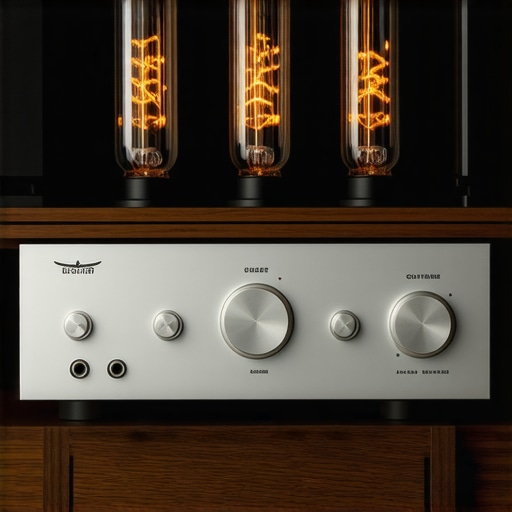
Have you ever fallen into this trap of over-engineering the gear while ignoring the simple physical environment? It’s a classic mistake that even seasoned pros make when they get too focused on the specs. Let me know in the comments if you’ve ever moved a speaker six inches and suddenly felt like you bought an entirely new system.
Your Volume Dial Doesn’t Need a Repair Shop—It Needs a Cleaning
I’ve seen too many people bin a perfectly good vintage amp because of a little static. If you hear a pop or a hiss when you turn the knob, you don’t have a dead unit; you have oxidized contacts. I personally swear by DeoxIT D5. It is not just ‘spray’; it is a chemical cleaner that dissolves the gunk without leaving a residue that attracts more dust. This is exactly how to fix a scratchy volume dial with electrical contact cleaner without taking the whole thing apart. I have revived three ‘broken’ receivers this year just by cleaning the pots. It is the same logic for your car setup—if things feel off, you might just need to how to properly ground a car amplifier to eliminate engine hum rather than buying a new one. According to the technical documentation at Sound on Sound, even gold-plated connectors are susceptible to atmospheric pollutants that cause microscopic signal degradation over time. Keeping your signal path clean is the difference between a system that lasts five years and one that lasts fifty.
How do I maintain my high-end audio gear over the long haul?
Maintenance is not just about the internal circuits; it is about the materials that touch your skin. If you notice why your headphone pads are flaking and how to prevent it, you are already behind the curve. Leather and protein-leather pads absorb oils from your skin, which eventually cracks the surface. I make it a habit to wipe down my gear once a week. It is about as essential as knowing how to clean your headphone ear pads without ruining the leather using specifically non-alcohol-based cleaners. Similarly, if you see why your vintage receivers lights are flickering with the music, do not panic immediately. Often, it is a sign of a loose bulb or a slightly overloaded capacitor that just needs a quick check before it becomes a total failure. I have a small maintenance kit that includes a soft brush because the trick to removing dog hair from speaker grilles safely is all about patience and the right tools, not a vacuum cleaner that might pull the driver right out of its housing.
The $10 Tool That Saves a $1,000 Receiver
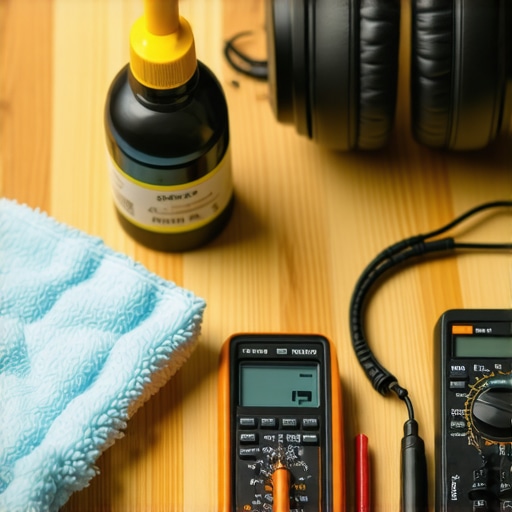
If you are serious about this hobby, you need a digital multimeter. Period. I used to guess why my speakers were acting up until I realized I could just measure the resistance. It helps you how to test your headphones for a blown driver at home by checking if the ohms match the manufacturer’s specs. If your left ear reads 32 ohms and your right reads ‘infinite,’ you know exactly where the break is. This kind of diagnostic power stops you from overspending on replacement gear you do not actually need. I foresee a future where our audio gear will have these diagnostic tools built-in, using AI to monitor ‘thermal health’ and signal integrity in real-time. We are already seeing this in high-end soundbars that calibrate their EQ based on how the room’s humidity affects sound travel. For now, though, we still have to do the manual work. My big advanced tip for you today? Use your multimeter to check the continuity of your cables. You would be shocked how many ‘dead’ speakers are actually just victims of a $2 cable with a hairline fracture inside the insulation. Go check your main cables right now—I guarantee at least one of them is underperforming.
I was halfway through the climax of an intense thriller, popcorn in hand, when it happened. The detective on screen screamed, but the sound didn’t hit my ears until he’d already started running away. It was like watching a badly dubbed 70s kung fu flick on a premium MacBook. My heart sank. There is nothing—and I mean nothing—that pulls you out of a cinematic moment faster than a half-second delay between a character’s lips moving and the dialogue reaching your ears. If you’ve ever felt that specific brand of digital frustration, you aren’t alone. I’ve spent more nights than I care to admit yelling at my screen, toggling Bluetooth on and off like a madman, hoping that the universe would finally align my audio and video. It feels like a betrayal; you buy the nice gear, you set the mood, and the technology just decides to take a coffee break while the movie keeps rolling.
Stop Blaming Your Hardware and Start Fixing the Connection
The first thing I did when I encountered this mess was panic. I assumed my expensive noise-canceling headphones were a dud. I even went as far as thinking my laptop speakers sounding tinny was a sign that the entire sound card was fried. I was wrong. I spent hours reinstalling BIOS updates and messing with graphic settings, which had absolutely zero impact on the sync. It was a rookie mistake, thinking the physical hardware was the culprit when the protocol was the real enemy. The truth is, your laptop is likely working perfectly—it’s just communicating in a language that prioritizes connection stability over real-time speed. Today, we are going to change that. I’m going to show you the exact settings I discovered that finally locked my audio in place.
Is Bluetooth just fundamentally bad for watching movies?
It’s a fair question to ask. When you realize that the wireless headphones lag you experience in high-octane games is also haunting your quiet Netflix dramas, it’s easy to get cynical. But here is a surprising fact: the technology is actually capable of near-perfect sync, but your laptop often defaults to the most basic, lag-heavy codec available. According to latency tests by RTINGS, standard Bluetooth SBC codecs can hit delays of 200ms, while AptX Low Latency can drop that to under 40ms—effectively invisible to the human eye. The fix isn’t usually buying new gear, but forcing your computer to stop being so lazy with its wireless handshake. It’s a bit like when you have to fix the audio delay on your soundbar; the hardware is fine, but the software settings are fighting you.
Ditch the Basic Codecs That Slow You Down
Your laptop is a chronic multitasker, and sometimes it gets lazy with how it packages audio data to save energy. By default, many systems fall back on the SBC (Subband Coding) codec, which is essentially the audio equivalent of sending a high-definition movie through a dial-up connection. If you’re on a Mac, you can actually force the system to prioritize higher-quality streams like AAC or AptX, which significantly slashes the wireless headphones lag during gaming or movie watching. I remember a particularly frustrating night where I eventually had to dive into the ‘Bluetooth Explorer’ tool to force the AAC codec bitrates. The moment I checked that box, the audio snapped into place. It wasn’t the headphones’ fault; it was the laptop trying to save a tiny bit of CPU power. If you find your headphones sound quiet on your laptop but loud on your phone, it is often a sign that your computer is struggling to drive the signal properly through these basic protocols.
Give Your Sound a Dedicated Fast Lane
If software tweaks don’t cut it, your internal sound card might be the bottleneck. Most laptops cram their audio components right next to noisy processors and Wi-Fi chips, which can cause jitter. The most effective ‘pro’ move is to bypass the internal hardware entirely. You can how to use a DAC to improve your desktop computers audio by plugging in a small USB digital-to-analog converter. Think of a DAC as a specialized translator who only speaks ‘Audio.’ Instead of your main CPU trying to juggle 50 tasks while also processing sound, the DAC handles the heavy lifting, delivering a lag-free stream directly to your ears. This approach mirrors how high-end setups fix the lip-sync delay on your soundbar using HDMI settings—by ensuring the signal path is as clean and direct as possible.
#IMAGE_PLACE_HOLDER_B#
Beyond hardware, you must also look at environmental interference. Every time I moved my mouse, the audio stuttered just enough to lose sync. If you’re in a crowded office or a room full of gadgets, your Bluetooth signal is fighting for airtime. Turning off unnecessary peripherals or switching your Wi-Fi to a 5GHz band can provide the ‘breathing room’ your audio needs to travel at full speed. This is often the forgotten step when trying to fix the audio delay on your soundbar or laptop speakers.
Shift the Timeline Manually in Your Software
Sometimes the lag isn’t even in the air; it’s baked into the file. If you are using a dedicated player like VLC, you have a secret weapon: the ‘K’ and ‘J’ keys. These allow you to manually shift the audio track forward or backward. It’s a band-aid, sure, but when you’re halfway through a film, it’s a lot better than restarting your machine. For those stuck in a browser window, there are extensions like ‘Audio Delay’ that perform the same magic for YouTube and Netflix. By taking manual control, you stop being a victim of the ‘auto-sync’ that clearly isn’t doing its job. But even if you perfectly sync your audio, you might still find yourself underwhelmed by the quality, leading many to the most common expert-level mistake: chasing power over precision.
Stop Chasing the Highest Wattage Numbers
Most people assume that ‘louder is better’ and that a higher wattage rating automatically equates to higher quality. I’ve seen countless enthusiasts drop thousands on a high-end receiver only to wonder why your receivers protection mode keeps triggering at high volume. The reality is that the relationship between your amp and your speakers is more like a delicate marriage than a power struggle. If you don’t understand the secret to choosing the right ohm rating for your amp, you’re essentially trying to run a marathon in heavy hiking boots—it works, but the system is going to overheat and fail long before the finish line. True expertise comes from matching sensitivity and impedance, not just looking for the biggest number on the box.
Can you actually hear the difference in a ‘broken-in’ speaker?
This is the hill many audiophiles choose to die on. You’ll hear people claim you need 100 hours of pink noise before a driver ‘opens up.’ However, research by Dr. Floyd Toole in his seminal work on acoustics indicates that while minor mechanical changes in the spider and surround do occur in the first few minutes of use, the massive ‘tonal shifts’ people claim after months are often just psychoacoustic adaptation—your brain is simply getting used to the sound signature. This is why I always tell people to learn how to properly break in new headphones without using white noise; it’s more about letting the materials settle naturally than forcing a change that might not even be audible to the human eye.
The Hidden Trap of Desk Reflections
The real ‘oops’ factor that kills most home setups isn’t the gear itself, but where you put it. I used to keep my expensive monitors right on my tabletop until I realized why your bookshelf speakers sound better when you move them off the desk. The flat surface of your desk acts like a giant sounding board, creating early reflections that interfere with the direct sound from the drivers. This creates a ‘comb filtering’ effect that makes your audio muddy and ‘small.’ It’s the same reason how to tell if your speakers capacitor is starting to fail becomes a concern—you start chasing hardware ghosts and component failures when the problem is actually just basic physics and room acoustics.
#IMAGE_PLACE_HOLDER_C#
Have you ever fallen into this trap of over-engineering the gear while ignoring the simple physical environment? It’s a classic mistake that even seasoned pros make when they get too focused on the specs. Let me know in the comments if you’ve ever moved a speaker six inches and suddenly felt like you bought an entirely new system.
Your Volume Dial Doesn’t Need a Repair Shop—It Needs a Cleaning
I’ve seen too many people bin a perfectly good vintage amp because of a little static. If you hear a pop or a hiss when you turn the knob, you don’t have a dead unit; you have oxidized contacts. I personally swear by DeoxIT D5. It is not just ‘spray’; it is a chemical cleaner that dissolves the gunk without leaving a residue that attracts more dust. This is exactly how to fix a scratchy volume dial with electrical contact cleaner without taking the whole thing apart. I have revived three ‘broken’ receivers this year just by cleaning the pots. It is the same logic for your car setup—if things feel off, you might just need to how to properly ground a car amplifier to eliminate engine hum rather than buying a new one. According to the technical documentation at Sound on Sound, even gold-plated connectors are susceptible to atmospheric pollutants that cause microscopic signal degradation over time. Keeping your signal path clean is the difference between a system that lasts five years and one that lasts fifty.
How do I maintain my high-end audio gear over the long haul?
Maintenance is not just about the internal circuits; it is about the materials that touch your skin. If you notice why your headphone pads are flaking and how to prevent it, you are already behind the curve. Leather and protein-leather pads absorb oils from your skin, which eventually cracks the surface. I make it a habit to wipe down my gear once a week. It is about as essential as knowing how to clean your headphone ear pads without ruining the leather using specifically non-alcohol-based cleaners. Similarly, if you see why your vintage receivers lights are flickering with the music, do not panic immediately. Often, it is a sign of a loose bulb or a slightly overloaded capacitor that just needs a quick check before it becomes a total failure. I have a small maintenance kit that includes a soft brush because the trick to removing dog hair from speaker grilles safely is all about patience and the right tools, not a vacuum cleaner that might pull the driver right out of its housing.
#IMAGE_PLACE_HOLDER_D#
The $10 Tool That Saves a $1,000 Receiver
If you are serious about this hobby, you need a digital multimeter. Period. I used to guess why my speakers were acting up until I realized I could just measure the resistance. It helps you how to test your headphones for a blown driver at home by checking if the ohms match the manufacturer’s specs. If your left ear reads 32 ohms and your right reads ‘infinite,’ you know exactly where the break is. This kind of diagnostic power stops you from overspending on replacement gear you do not actually need. I foresee a future where our audio gear will have these diagnostic tools built-in, using AI to monitor ‘thermal health’ and signal integrity in real-time. We are already seeing this in high-end soundbars that calibrate their EQ based on how the room’s humidity affects sound travel. For now, though, we still have to do the manual work. My big advanced tip for you today? Use your multimeter to check the continuity of your cables. You would be shocked how many ‘dead’ speakers are actually just victims of a $2 cable with a hairline fracture inside the insulation. Go check your main cables right now—I guarantee at least one of them is underperforming.
The Subtle Traps I Fell Into While Chasing Perfect Sync
After years of obsessing over timing, I’ve realized that the most expensive solution is rarely the best one. Often, the problem is hiding in plain sight. For instance, I once spent a month trying to EQ my way out of a ‘thin’ sound profile when the real culprit was why your headphones sound thin when you wear glasses; the frames were simply breaking the acoustic seal of the ear pads. I also learned to stop panicking at every mechanical sound. Knowing the reason your expensive receiver makes a clicking sound when it starts—which is usually just a healthy relay—saved me from an unnecessary repair bill.
Another major takeaway was treating my portable gear with the same respect as my stationary setup. I discovered the mistake that kills your portable speaker battery life was actually affecting the voltage stability, which in turn caused slight stutters in the Bluetooth handshake. Finally, always check your physical path; just as why your car speakers cut out when you hit a bump is usually a loose connection, a loose USB-C port on your laptop can cause your external DAC to drop bits and lose sync entirely.
The Toolkit That Keeps My Audio Locked In
You don’t need a degree in electrical engineering to maintain a high-end system, but you do need a few trusted resources. My ‘audio first-aid kit’ always includes a digital multimeter for checking cable continuity and a specialized contact cleaner for scratchy dials. When I am dealing with annoying background noise, I rely on the $5 fix for humming speakers and ground loops to isolate electrical interference immediately. For software, I recommend keeping a ‘clean’ browser profile specifically for streaming, free of heavy extensions that might hog the CPU and cause that dreaded wireless headphones lag.
Take Back Your Movie Nights
Don’t let a technical glitch stand between you and a great story. Whether it’s forcing a better codec or cleaning up your desk reflections, every small adjustment brings you closer to that perfect, immersive experience. Fixing wireless headphones lag isn’t just about the milliseconds; it’s about restoring the magic of cinema in your own home. You have the gear and now you have the knowledge—go ahead and hit play. What’s the weirdest fix that actually solved an audio sync issue for you? Let me know in the comments below!