
I was sitting in a quiet coffee shop, finally ready to dive into the latest cinematic masterpiece on my high-end laptop. I hit play, expecting a roar of sound, but what I got sounded more like a swarm of angry bees trapped in a soda can. It was embarrassing. People three tables away were wincing at the shrill, hollow treble. I realized then that no matter how much we pay for “premium” ultrabooks, the laws of physics do not care about our bank accounts. We have traded rich, resonant sound for machines thin enough to slice cheese, and my ears were paying the price.
The Physics of Why Your Thin Laptop Sounds So Bad
It is a simple, frustrating reality: to get deep bass, you need to move air. Tiny speakers squeezed into a 15-millimeter chassis just cannot do it. I used to think I could just “software” my way out of this, but I learned the hard way that pushing these tiny drivers too far leads to permanent damage. I once blew out a left speaker by forcing a “Bass Boost” setting that the hardware could not handle. If you have ever wondered why your bluetooth speaker sounds distorted at 80% volume, the same principle applies here—you are hitting the physical ceiling of the hardware.
The “tinny” sound is actually a lack of lower-midrange and bass frequencies, leaving only the harsh high-end to dominate the soundstage. According to research from the Audio Engineering Society (AES), the resonant frequency of micro-speakers is often hundreds of Hertz higher than standard bookshelf speakers, which inherently creates that “thin” profile we all hate. But here is the good news: while we cannot change the laws of physics, we can definitely trick our ears into thinking there is more weight to the music than there actually is.
Can a Software Fix Really Save My Ears?
You might be skeptical. Can a few clicks in a menu really make a difference for hardware the size of a fingernail? I used to think “enhancements” were just marketing gimmicks, but once I started playing with System EQ and spatial audio, I realized how much manufacturers leave on the table to protect their components. Today, we are going to walk through the exact settings I use to bring some warmth back to the mix. We will also look at when you need to give up on the built-in drivers entirely and how to use a DAC to improve your desktop computers audio for a truly professional experience.
Have you ever reached for your headphones because you could not stand the screeching of your laptop speakers for one more second? It is a common struggle, and sometimes the hardware behaves even weirder, like why your headphones sound quiet on your laptop but loud on your phone. Let us dig into the technical reasons so we can finally get to the practical fixes that actually work.
Stop Ignoring Your System Sound Settings
The first thing I do with any new laptop is dive into the Sound Control Panel to look for hidden boosts. On Windows, navigate to your speaker properties, look for the Enhancements tab, and check Loudness Equalization. It acts like a secret weapon for thin speakers by normalizing the volume, making the lower frequencies more audible without pushing the hardware into clipping. I remember my first high-end ultrabook; I tried to manually crank the 60Hz slider to +12dB using a generic equalizer. The entire chassis started vibrating so violently it literally shuffled across my desk. It was a mess. If you hear a distinct rattle or pop after adjusting settings, you need to know how to test your headphones for a blown driver at home because internal speakers are just as fragile when pushed beyond their limits.
Use Physical Surfaces to Your Advantage
Your laptop is basically a tiny acoustic chamber. If you use it on your lap or a plush bed, the fabric absorbs the few frequencies the speakers manage to produce. Place that same laptop on a solid wooden desk, and the surface acts as a sounding board. I found that placing my machine about three inches away from a wall or a corner dramatically increases the punch of the audio. This is the same logic as why your portable speaker sounds better when placed in a corner—the boundaries reflect the sound waves back toward you, reinforcing the thin low-end. 
Clean Up the Mud with Software EQ
Most people try to fix bad sound by adding more bass, but the real trick is often cutting the frequencies that make it sound cheap. Using a tool like Equalizer APO allows you to target the 2kHz to 4kHz range—the “shrieky” part of the spectrum—and pull it down by 3 or 4 decibels. This clears up the soundstage and makes the music feel warmer. However, if the vibration of the desk itself starts to muddy the vocals, keep in mind that why your bookshelf speakers sound better when you move them off the desk applies here too. Sometimes isolating the laptop with a small stand or even a couple of rubber erasers under the back corners can stop that annoying table-rumble.
Bypass the Cheap Internal Hardware
When software reaches its limit, the problem is likely the digital-to-analog converter (DAC) and the tiny amplifier inside the motherboard. These components are often poorly shielded, leading to that background hiss you hear during quiet scenes in a movie. Switching to a dedicated external device is the gold standard. Once you understand how to use a DAC to improve your desktop computers audio, you will realize that the hardware bottleneck was the real culprit all along. A simple USB-C dongle can provide a cleaner signal and enough power to drive the speakers more efficiently, giving you the clarity that a software slider simply cannot provide.
However, do not rush out to buy the most expensive gear just yet. There is a common trap I see beginners fall into: the ‘more is better’ fallacy. Most people believe that a bigger amplifier or a higher wattage rating automatically translates to better sound, but this is rarely the case. In fact, why your bookshelf speakers need more power than you think usually comes down to efficiency ratings rather than just the volume knob’s position. If you pair a massive amp with highly sensitive speakers, you might actually introduce more noise floor hiss than actual music. Knowing the secret to choosing the right ohm rating for your amp is far more important for system longevity and clarity than just chasing raw wattage numbers.
Why Does My Expensive DAC Sound the Same as My Laptop?
I once spent a week’s salary on a high-end converter, expecting to be instantly transported to a concert hall. Instead, I could barely tell the difference between the new box and my standard output. It turns out that if your source file is a low-quality stream, even the best hardware cannot polish that mud. This is exactly why your high-end dac sounds exactly like your laptops headphone jack in many entry-level setups. The hardware is only as good as the weakest link in your chain. Expert research published in the Journal of the Audio Engineering Society suggests that human listeners often cannot distinguish between high-resolution audio and standard CD quality in double-blind tests if the playback environment is not perfectly treated or the gear lacks sufficient transparency. 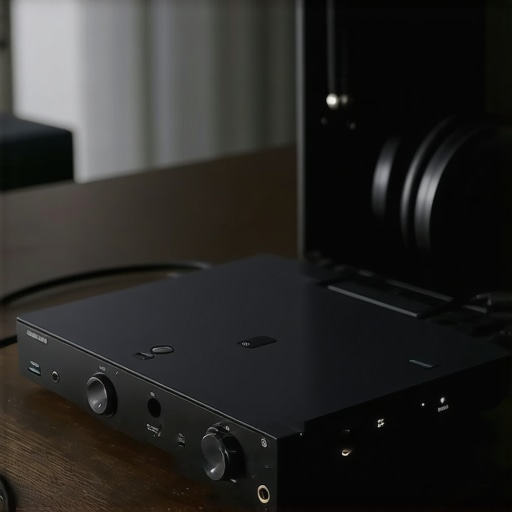
The Invisible Mistakes That Ruin Your Soundstage
The biggest nuance I have learned over the years is not about the electronics; it is about the mechanics and physics of the fit. If you are a headphone user, you might be sabotaging yourself without even knowing it. For example, why your headphones sound thin when you wear glasses is a very real phenomenon where the stems of your frames break the acoustic seal of the ear pads, leaking all your precious low-frequency pressure into the room. Similarly, if you are setting up external desk speakers, you must ensure they are pushing air in the same direction at the same time. You should learn how to tell if your speakers are out of phase in 30 seconds, or you will forever wonder why your music sounds hollow and ghostly even with the best equalizer settings.
Finally, if you have transitioned to using portable gear to augment your laptop setup, be extremely careful with your charging habits. Many people leave their gear plugged into the laptop 24/7, which is the mistake that kills your portable speaker battery life faster than anything else. Heat and constant high voltage are the primary enemies of lithium-ion cells. Have you ever fallen into this trap of over-optimizing the wrong part of your setup? Let me know in the comments, and let us figure out where your audio bottleneck really is.
Stop Letting Dust and Oxidation Kill Your Dynamics
I have seen thousand-dollar systems reduced to paperweights simply because the owner ignored the tiny points of contact. Over time, the copper and silver in your connectors react with the oxygen in the air, creating a microscopic layer of resistance. If you notice a crackling sound when you adjust the volume, you need to learn how to fix a scratchy volume dial with electrical contact cleaner before the oxidation becomes permanent. I personally swear by DeoxIT D5; it is a niche industrial-grade cleaner that does not just wash away gunk but actually improves conductivity. Beyond the external ports, internal components like electrolytic capacitors have a shelf life. If your bass starts sounding ‘loose’ or ‘floppy,’ it might be time to investigate how to tell if your speakers capacitor is starting to fail, especially in vintage gear where these parts are prone to drying out.
How do I keep my audio setup sounding like new for years?
Maintenance is more than just dusting; it is about preventing physical decay. I have watched beautiful setups turn into eyesores because of UV damage. If your gear sits near a window, you should proactively check for fading, or learn how to restore a sun-faded speaker grille to look new again to maintain that factory-fresh look. For headphone users, the biggest enemy is skin oils. It is a slow process, but once that synthetic leather starts peeling, it is too late. Knowing why your headphone pads are flaking and how to prevent it will save you from buying replacements every six months. I make it a habit to wipe my headbands with a dry microfiber cloth after every session—it takes ten seconds and adds years to the material’s life.
The Free Software That Changes Everything
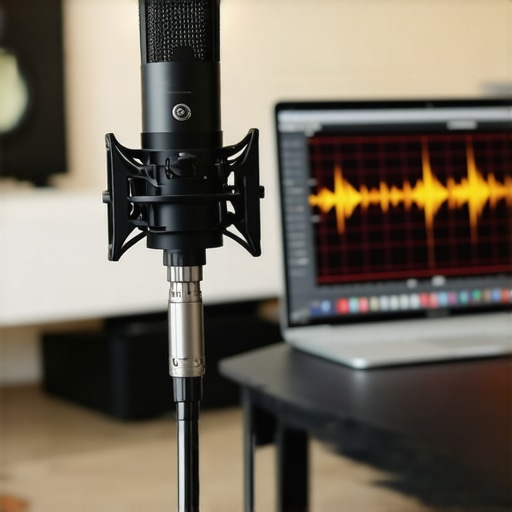
Once your hardware is physically sound, you need to address the software side of long-term performance. I no longer trust my ears alone to calibrate a room; I trust Room EQ Wizard (REW). According to the REW (Room EQ Wizard) official manual, utilizing a calibrated measurement microphone like the UMIK-1 is the only way to obtain an accurate +/- 0.5 dB frequency response reading of your listening space. While you can learn how to use your phone to measure your rooms frequency response for a quick check, serious enthusiasts use dedicated software to find the hidden nulls in their floor plan. If your sound feels lacking, it is often why your vintage speakers are losing their punch over time—not because the drivers are bad, but because the room’s acoustics have changed with new furniture or layout shifts.
Looking ahead, the next five years of audio will be dominated by “Adaptive AI Calibration.” We are moving toward speakers that use built-in microphones to constantly re-map themselves to the room every time you move a chair. But until that becomes affordable, your best bet is to stay hands-on. My challenge to you: download a free frequency generator today and run a slow sweep from 20Hz to 200Hz. If you hear parts of your room vibrating or the volume dropping out at certain points, you have work to do. Do not just buy new speakers; fix the room you already have.
Lessons Learned from Thousands of Listening Hours
After years of testing everything from cheap earbuds to high-end tower speakers, I have realized that the biggest bottleneck is rarely the price tag—it is the setup. First, stop chasing “volume” and start chasing “headroom.” If you push your laptop to 100%, you are almost always hearing the struggle of the internal amplifier rather than the music itself. Second, if you decide to transition to a desktop setup to escape those tiny drivers, keep in mind that the reason your speaker stands need to be filled with sand is to stop the furniture from vibrating along with your speakers, a principle that applies even to small laptop risers. Finally, if you are a gamer, remember that the hidden reason your wireless headphones lag during gaming is often a bandwidth mismatch that no amount of EQ can fix; sometimes a physical wire is the only true solution for perfect sync.
My Essential Toolkit for Perfect Playback
I never travel without these three essentials for better sound. First, Equalizer APO (specifically with the Peace GUI) is my go-to for Windows because it operates at the system level, fixing the sound for YouTube, Netflix, and Spotify simultaneously. Second, I always carry a high-quality USB-C DAC dongle; it is a small investment that instantly removes the electrical hiss inherent in crowded laptop motherboards. Third, I highly recommend keeping a can of specialized cleaner nearby; knowing how to fix a scratchy volume dial with electrical contact cleaner is a lifesaver for older external gear that has sat in a dusty office. I trust these tools because they focus on the actual physics of sound rather than the marketing hype often found on retail packaging.
#IMAGE_PLACEHOLDER_E#
Your Ears Deserve Better Than Factory Defaults
We spend so much time obsessing over pixel counts and refresh rates that we often forget sound is half the emotional experience of any movie or game. Improving your laptop audio quality is not about spending thousands of dollars on audiophile gear; it is about taking control of the signals your hardware is sending and understanding the limitations of the chassis. Whether it is a quick EQ tweak to cut harsh frequencies or finally bypassing the cheap internal chip with an external converter, these small wins add up to a much richer daily experience. Don’t be afraid to experiment with your settings—you cannot break the software, and the reward is a soundstage that actually feels alive. Have you managed to find a specific software setting or a physical trick that finally made your thin laptop sound “full”? Let me know your setup in the comments below!